Send photos, files and songs in a chat
Share a stage photo, a PDF chart or a song from your library in any chat.
Steps
Send photos and files
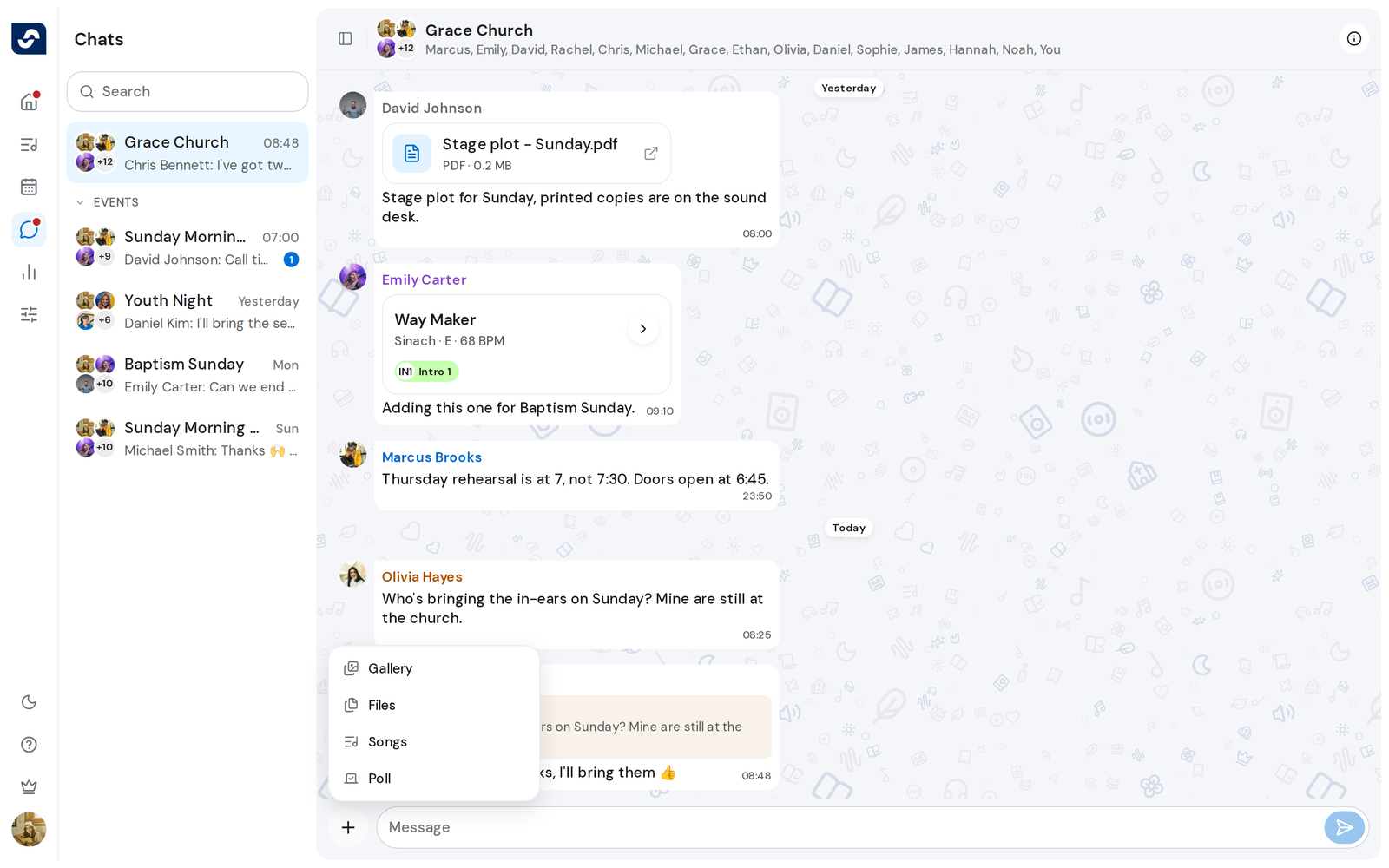
- Open the chat and click Attach beside the Message box.
- Click Gallery for photos or Files for anything else, then choose them on your computer. You can also drag files onto the conversation, or paste them into the Message box.
- Add a message if you like, then click Send.

Send songs
Paid plan: This needs a paid plan. What's included
- Click Attach, then Songs. Add songs opens.
- Tick the songs you want and click the button that counts them, such as Add 2 songs.
- Click Send.
Good to know
- Each file can be up to 25 MB. A larger one is left out with a message, and the rest still send. You can send up to 20 photos in one message.
- Click the cross on a waiting file or song to take it off before sending.
- Chat files count toward your team's storage. When it's full, Storage Limit opens and nothing is sent.
- Anyone can open a song someone sent. Click it to open the song.