Choose a plan and upgrade on the web
Buy a plan in your browser: pick your team size, then pay by card.
Who can do this: Owner. What the roles mean
Steps
- Click Settings in the rail.
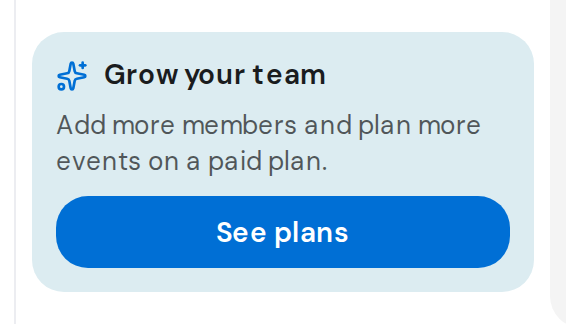
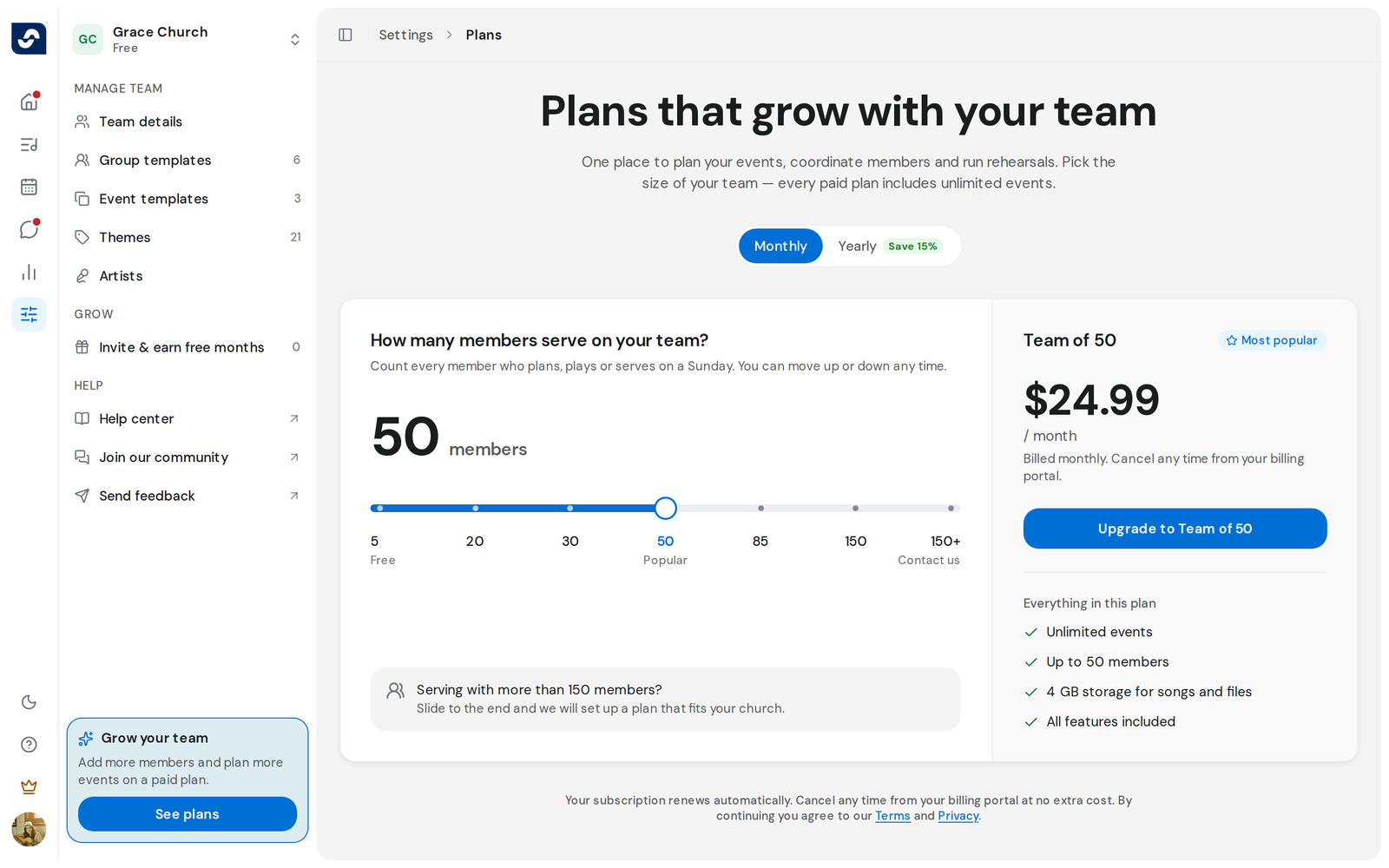
- On the free plan, click See plans on the Grow your team card. On a paid plan, click your plan card, then Change plan.
- Choose Monthly or Yearly.
- Drag the Team size slider to the size you need.
- Click the button under the plan, such as Upgrade to Team of 50.
- Enter your card details in the checkout that opens and pay.
- When Welcome to Team of 50 appears, click Invite your team or Done.
Good to know
- A plan you already pay for on the web changes in the billing portal: the button reads Change in billing portal and opens in a new tab.
- A plan bought in the App Store or Google Play can only be changed there. If you already pay for OnStage in a store, checkout stops with You already have a subscription, so you don't pay twice.
- Slide Team size to the end for Contact us.
- Everyone else sees Ask your team owner to upgrade.