Sync your schedule to your calendar
Connect your Google account and your events, rehearsals, and blockouts appear in Google Calendar alongside everything else.
Where: iPhone, iPad and Android only. OnStage on phone, tablet and web
Steps
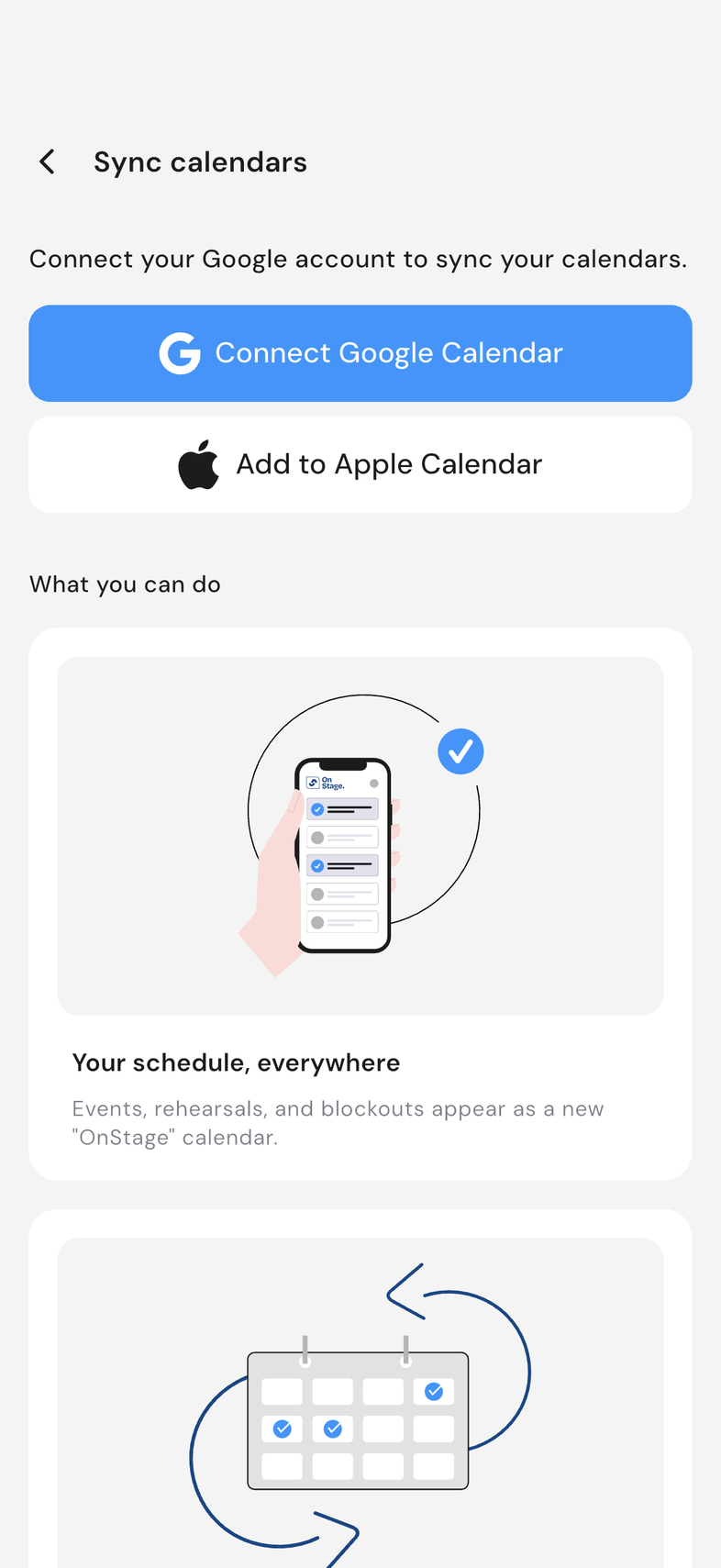
Connect your calendar
- Open Settings, then Sync calendar.
- Under Connected accounts, tap Connect Google Calendar.
- Choose the Google account you want to use.
- Allow access when Google asks.
- Wait for Connecting Google account to finish.
- Open Google Calendar and look for the new OnStage calendar.
Everything lands in one calendar named OnStage, so you can hide it or color it separately. Changes in OnStage reach Google Calendar on their own.
Choose what syncs
Once you're connected, three switches decide what reaches your calendar, so you can take the events and leave the rest.
- Open Settings, then Sync calendar.
- Scroll to What syncs.
- Turn Events, Rehearsals, or Blockouts on or off.
Each switch saves on its own: there's nothing to confirm. The switches cover every calendar you've connected, not one at a time, and turning one off doesn't touch anything inside OnStage: you'll still see those items in My Schedule.
Fix a sync problem
If your events stop appearing in your calendar, work through these in order.
- Open Settings, then Sync calendar.
- If you see We encountered an issue at the top, tap the banner and sign in again.
- Check What syncs. If Events, Rehearsals or Blockouts is off, that type won't appear.
- Look for an OnStage calendar in your calendar app and make sure it's ticked to show.
- Still nothing? Tap Disconnect, then connect again.
Good to know
- Disconnect removes the OnStage calendar from your Google account. Nothing inside OnStage changes.
- Google Calendar updates on its own, usually within a minute or two.
- If your device denied calendar access, allow it for OnStage in your device settings, then reconnect.
- Disconnecting removes the OnStage calendar. Your events in OnStage are not affected.
Related
- Sync with Apple Calendar